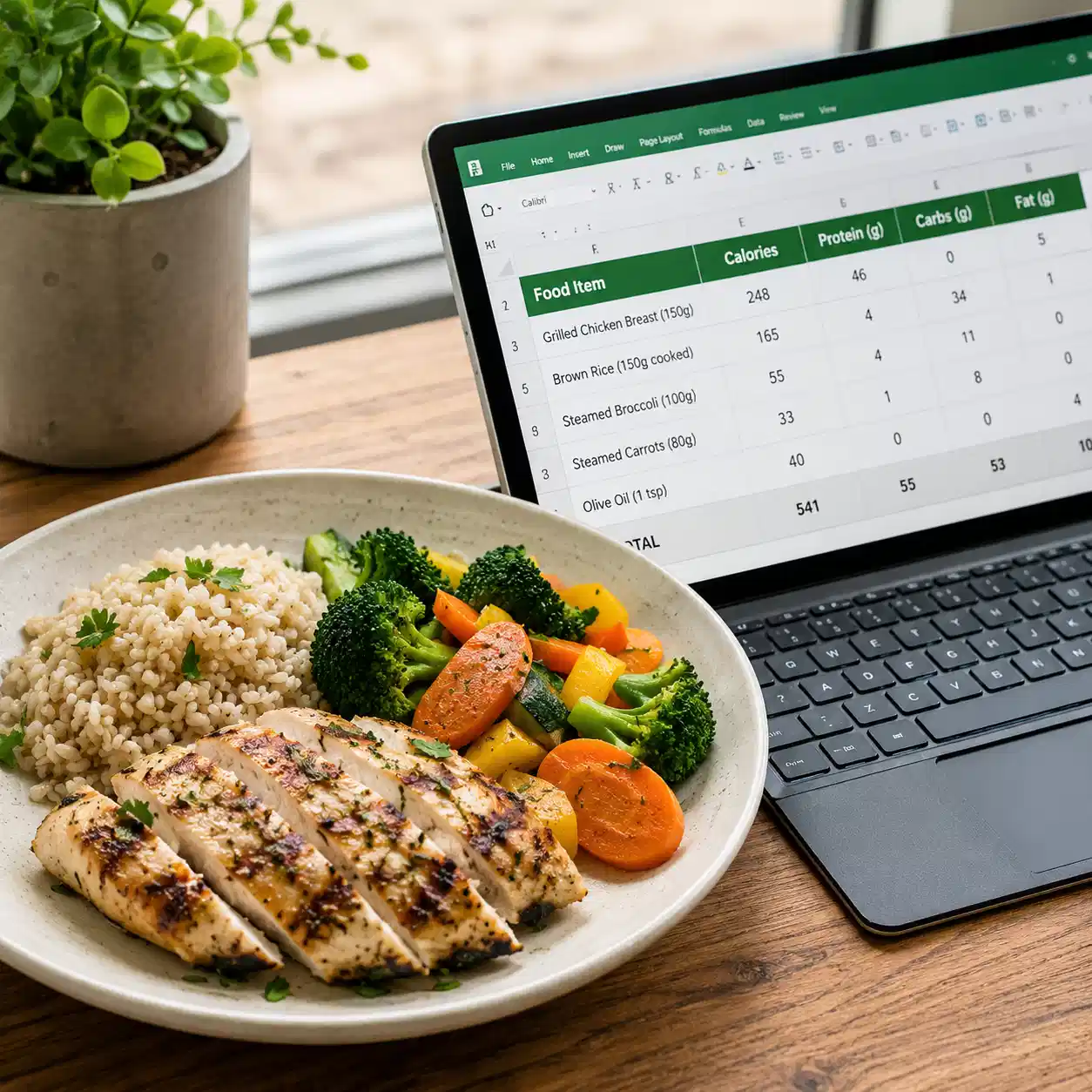
Keeping fit doesn't need a fancy app. Sometimes the simplest calorie and macro tracker is the one you already have: Excel. (or other free options if you won't have Excel. Keep reading.)
So many people install a diet app... and never open it again.
Problem: Today Diet App Can't Meet My Needs
Two types of users, two problems:
- Impatient users: love the flashy design at first, bored within days.
- Nerdy users (me): the app's food search is too slow, too clunky for daily use.
AI photo-scanning meals? Cool idea, weak execution.
- Sauce-heavy dishes hide the real ingredients.
- The camera easily underestimates calories.
- For home-cooked food, you already know what's in it. That's, no AI needed.

Plan: An Excel - Calories and Macronutrients Tracker
So I built my own tracker in Excel. Here's the approach:
1. Food name, just type it, NO dropdown.
- 90% of meals use 10% of your usual ingredients.
- Why scroll a 300-food list to find one at the bottom?
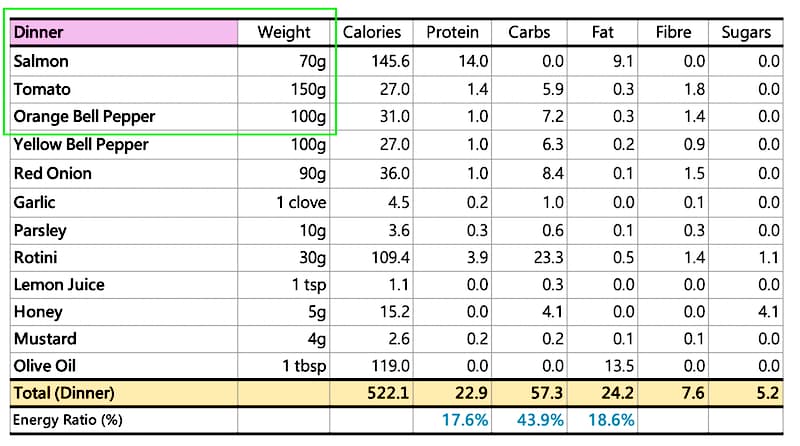
2. Weight, value + unit in ONE cell.
- e.g. "80g", "2 cloves", "1 cup", fast to type, natural to read.
3. Type both, data's ready instantly.
- No extra steps, no manual searching.
4. Copy-paste anywhere.
- New food row, new meal table, new sheet, formulas travel with it.
- Share with friend with simple screen capture
5. Refer to you successful and health meal anytime
- Simple search in excel and refer to your happy and healthy meal any time.
- Sustainability is the key for keeping in good shape!
6. Last be not least -- It is 100% Free!!!
- It is 100% free, no Excel subscription needed actually - the same formulas work in Google Sheets, and latest version of WPS.
Build: Collecting Data and Play with Formulas
How the formulas work, step by step:
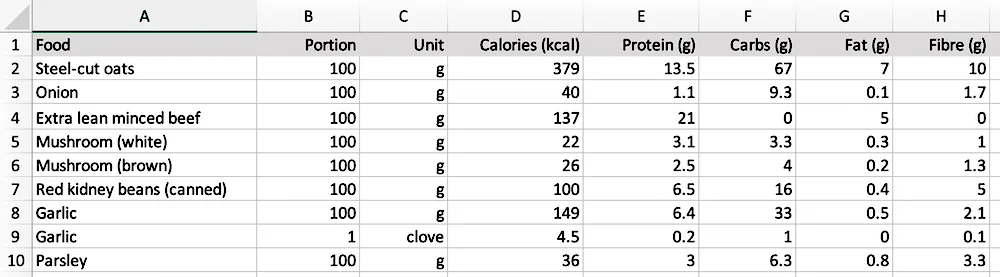
1. Prepare the Master Food List
Start by entering your favourite foods using the nutrition labels on the packaging.
You could download a full database online, but most people only regularly eat around 50 different foods — so there's no need to import a massive list you'll never use.
Feel free to include the occasional treat too, like a cheese hamburger; most fast-food chains publish full nutrition data on their websites, so you can add those in the same way.
2. Prepare the Unit List
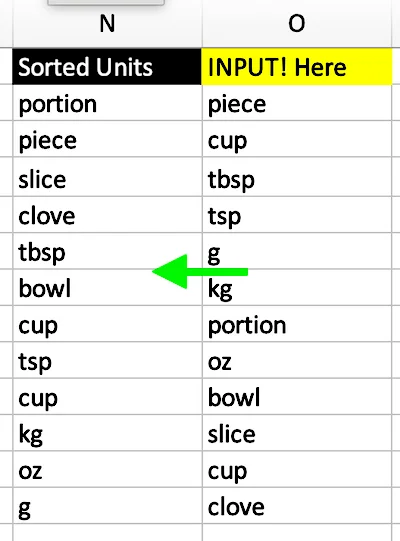
Sort your list of units from longest to shortest, so a longer unit like "tbsp" is checked before a shorter one like "tsp."
=SORTBY(OFFSET(O$2,0,0,COUNTA(O:O)-1), LEN(OFFSET(O$2,0,0,COUNTA(O:O)-1)), -1)
- COUNTA(O:O) — counts how many units you've entered, so the list automatically grows whenever you add a new one — no formula edits needed.
- OFFSET(O$2, 0, 0, COUNTA(O:O)-1) — uses that count to grab exactly your unit list, starting from O2, without hardcoding a fixed range.
- SORTBY(..., LEN(...), -1) — sorts the list by text length, longest first — so a shorter unit hiding inside a longer one (like "tsp" inside "tbsp") never gets matched by mistake.
3. Extract the Number from the Typed Cell
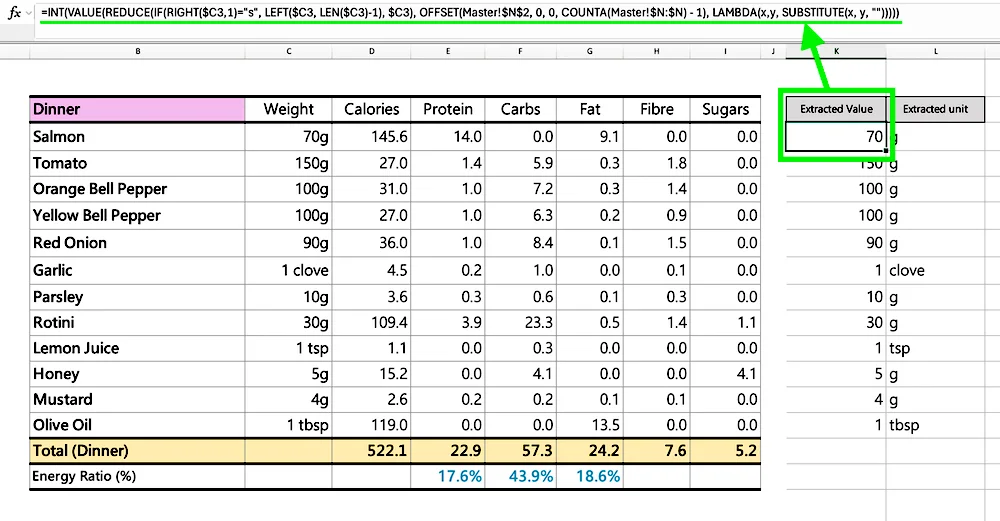
This pulls the plain number out of whatever you typed, so it can be used in a calculation.
=INT(VALUE(REDUCE(IF(RIGHT($C3,1)="s", LEFT($C3,LEN($C3)-1), $C3), OFFSET(Master!$N$2,0,0,COUNTA(Master!$N:$N)-1), LAMBDA(x,y, SUBSTITUTE(x,y,"")))))
- IF(RIGHT($C3,1)="s", LEFT($C3,LEN($C3)-1), $C3) — trims a trailing "s" if present, since your unit list is stored in singular form only. This way, plural and singular versions of the same unit are treated the same.
- REDUCE(..., unit_list, LAMBDA(x,y, SUBSTITUTE(x,y,""))) — checks the typed text against every unit in your list, one at a time, and removes whichever one matches. Only the real match does anything; the rest have no effect.
- VALUE(...) — converts the leftover text into an actual number.
- INT(...) — rounds down to a whole number (skip this if you ever need decimal weights).
4. Extract the Unit from the Typed Cell
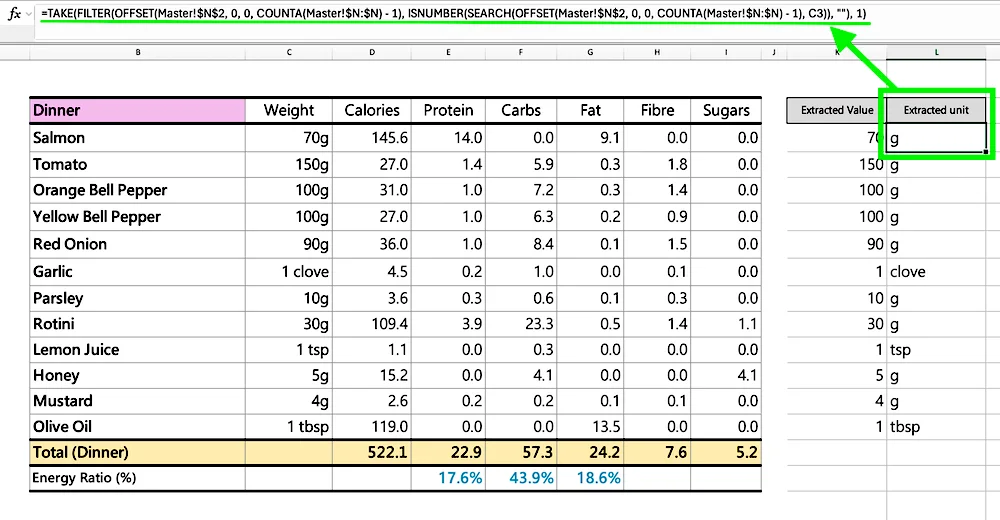
While the last step pulls out the number, this one identifies which unit was actually typed, so the two work as a pair.
=TAKE(FILTER(OFFSET(Master!$N$2,0,0,COUNTA(Master!$N:$N)-1), ISNUMBER(SEARCH(OFFSET(Master!$N$2,0,0,COUNTA(Master!$N:$N)-1), C3)), ""), 1)
- SEARCH(unit_list, C3) — checks your whole unit list against the typed text at once, returning a position if a unit is found inside it.
- ISNUMBER(...) — turns that result into TRUE/FALSE, TRUE meaning "this unit was found."
- FILTER(unit_list, TRUE/FALSE list, "") — keeps only the unit(s) that matched, returns blank if none did.
- TAKE(..., 1) — keeps just the first match, in case more than one unit overlaps, so you always get one clean answer.
5. Final Calculation
This matches food and unit together, then scales the nutrition data to your actual portion.
=XLOOKUP(1, ($B3=Master!$A:$A) * ($L3=Master!$C:$C), Master!D:D) / XLOOKUP(1, ($B3=Master!$A:$A) * ($L3=Master!$C:$C), Master!$B:$B) * $K3
- ($B3=Master!$A:$A) * ($L3=Master!$C:$C) — checks every row for a match on both food name and unit at the same time; only a row matching both returns 1. This lets one food (like Garlic) have separate entries for different units without mixing them up.
- First XLOOKUP(1, ..., Master!D:D) — returns the nutrient value from the one row that matched both conditions.
- Second XLOOKUP(1, ..., Master!$B:$B) — returns the reference amount for that same row (e.g. "100" if it's per 100g).
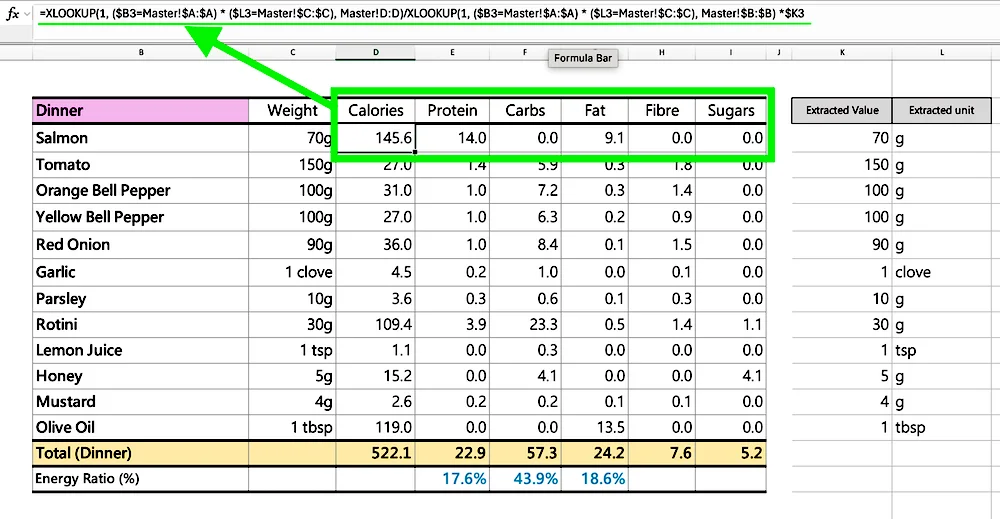
Dividing the two gives the nutrient value per single unit, then multiplying by $K3 scales it to your actual typed amount.
Result:
Type two cells, get six numbers. No app needed.
Back to Basics for Calorie Counting and Nutrient Balance
No app subscriptions, no ads, no gimmicks.
To keep fit, all you need is a simple calorie tracker and macro breakdown (protein, carbs, fat, fibre, sugars) built from real food data and updated the moment you type. You can even plan your diet ahead of time — just enter your favourite healthy foods and adjust the weight for each one until you hit your desired calories and macros, whether you're following a high-protein, low-fat, or low-carb diet.
If you're into meal planning, weight management, or just want an easy way to track calories and nutrients per meal, sometimes going back to basics with a spreadsheet beats another diet app.