I’m currently building Insprana.com, a platform dedicated to explaining the science of pranayama (breathing exercises). While developing the content, I realized that static text simply wasn't enough to teach techniques like the Breath of Fire. I needed something more engaging—I wanted to build a breathing app directly inside the blog editor.
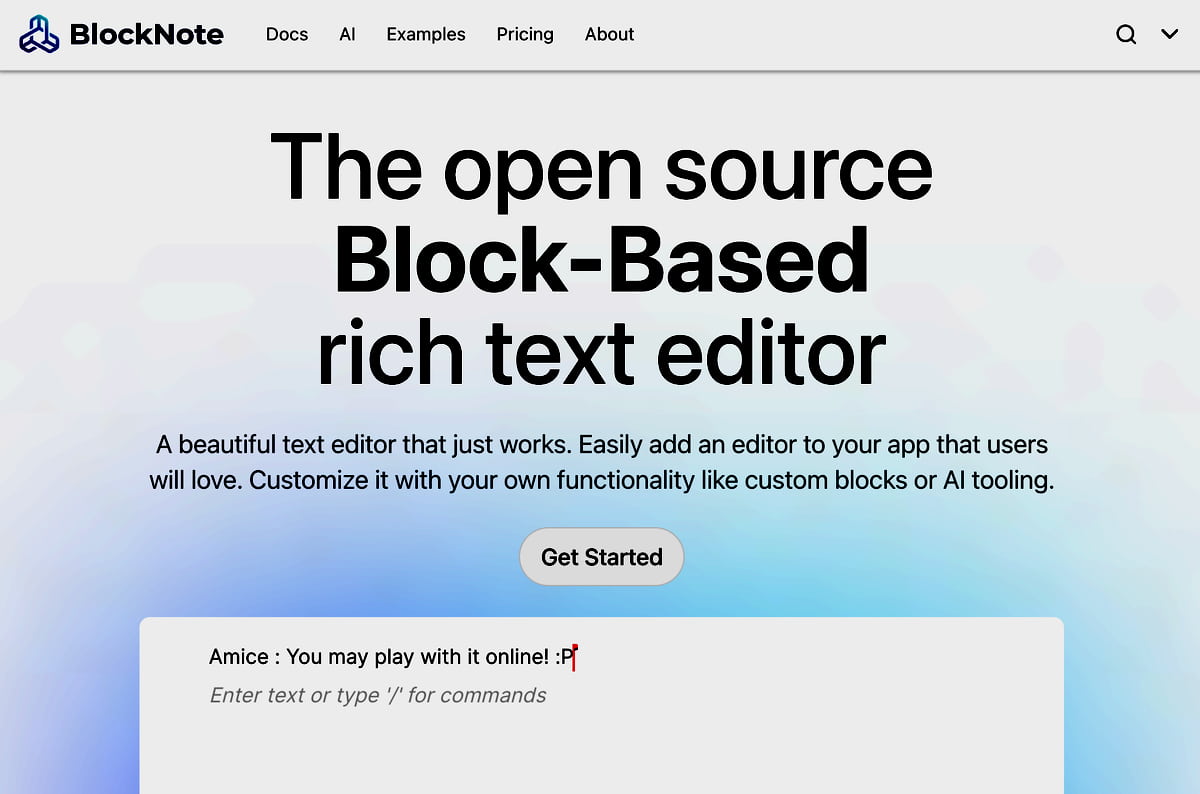
For the rich text editor, I chose BlockNote. Its clean, minimalist aesthetic pairs perfectly with my website’s design (built mostly with shadcn/ui), creating the ideal distraction-free environment for users.
However, integrating complex interactivity was harder than I anticipated. While BlockNote is an excellent library, references for building advanced, dynamic custom blocks are incredibly scarce. The official documentation covers the basics but lacks the specific details needed for integrating React components with internal state.
I had finally learn the hard way therefore want to share with those in needed —navigating through schema definitions and rendering issues. In this article, I’ll share exactly how I leveraged BlockNote’s custom block feature to bring these breathing animations to life.
Tech stack: NextJS, React, Typescript, BlockNote, Shadcn, Zod, Prisma, NeonTech
Assumption: (1) You have your Next.js project already with (2) models and database setup for your blog feature.
1. Project Setup
First, let's ensure you have the necessary packages installed:
npm install @blocknote/core @blocknote/react @blocknote/mantine
The fastest way to get started is by using the useCreateBlockNote hook and the BlockNoteView component. A basic "Hello World" implementation looks like this:
import React from "react";
import { useCreateBlockNote } from "@blocknote/react";
import { BlockNoteView } from "@blocknote/mantine";
import "@blocknote/mantine/style.css";
import "@blocknote/core/fonts/inter.css";

export default function BlockNoteEditor() {
  const editor = useCreateBlockNote();
  return <BlockNoteView editor={editor} />;
}
For a production app like Insprana, we need a reusable editor component that handles themes, file uploads, and initialization. To keep this article focused on the custom block logic, I will skip the boilerplate code for file handling and styling.
Here is the structural skeleton of our BlockNoteEditor.tsx. The most important part to notice here is the schema configuration inside useCreateBlockNote—this is where we will inject our magic later.
// component/blog/editor/BlockNoteEditor.tsx
'use client';

import { useCreateBlockNote } from '@blocknote/react';
import { BlockNoteView } from '@blocknote/mantine';
import { BlockNoteSchema, defaultBlockSpecs } from '@blocknote/core';
// ... other imports (themes, edgestore, styles)

interface BlockNoteEditorProps {
  // ... props for content, editable state, etc.
}

const BlockNoteEditor = ({ ...props }: BlockNoteEditorProps) => {
  // ... hooks for theme and file upload logic

  // 1. Create the editor instance
  const editor = useCreateBlockNote({
    // ... initialContent & uploadFile setup

    // 2. Define the Schema (CRITICAL STEP)
    // We extend the default schema so we don't lose standard blocks like paragraphs.
    schema: BlockNoteSchema.create().extend({
      blockSpecs: {
        ...defaultBlockSpecs,
        // [TODO]: We will add our 'breathing' block here soon!
      },
    }),
  });

  return (
    <div className="...">
      <BlockNoteView
        editor={editor}
        theme={/* ... */}
        // ... pass other props
      />
    </div>
  );
};

export default BlockNoteEditor;
2. The Architecture
Before we continue with the editor code, let's structure our custom block properly. Since I plan to have multiple breathing techniques (like Breath of Fire, Box Breathing, 3-7 Breathing), putting everything into a single file would be a mess.
I decided to use a modular approach with a dedicated BreathingBlocks directory.
The Folder Structure:
components/blog/editor/
├── BlockNoteEditor.tsx       <-- The main editor (The "Host")
└── BreathingBlocks/          <-- Our custom block module
    ├── BreathIndex.tsx       <-- The CORE "Router" / Manager component
    ├── FireBreath.tsx        <-- Individual Animation Logic
    ├── FireBreath.css        <-- Animation Styles
    ├── BoxBreath.tsx
    └── ...
3. The "Breath Index" Component
The core of this architecture is BreathIndex.tsx.
Instead of registering 5 different custom blocks in BlockNote (which would clutter the slash menu), I register one single block type called breathing. This block takes a variant prop to decide which animation to render.
- Variant is 'none': Show a selection menu (Grid of buttons).
- Variant is 'fire': Render the <FireBreath /> component.
- Variant is 'box': Render the <BoxBreath /> component.
This acts like a router for my custom block that further connecting to each breathing technique.
// components/blog/editor/BreathingBlocks/BreathIndex.tsx
import { FireBreath } from './FireBreath';
// ... imports

export const BreathIndex = ({ block, editor }: any) => {
  // 1. Read the current variant from block props
  const variant = block.props.variant || 'none';

  // 2. If no variant is selected, show the menu
  if (variant === 'none') {
    return (
      <div className="menu-grid">
        <button onClick={() => updateBlock('fire')}>Fire Breath</button>
        <button onClick={() => updateBlock('box')}>Box Breath</button>
        {/* ... more options */}
      </div>
    );
  }

  // 3. Render the specific animation based on variant
  return (
    <div className="animation-wrapper" contentEditable={false}>
      {variant === 'fire' && <FireBreath />}
      {variant === 'box' && <BoxBreath />}
    </div>
  );
};
4. Defining the Custom Block (The Trap 🪤)
Now we need to tell BlockNote about our new block. The official documentation suggests using createReactBlockSpec inside your component.
Do NOT do this.
If you define your schema inside the React component, every time the component re-renders (e.g., when you type a character), a new schema object is created. This confuses BlockNote’s internal React rendering engine, leading to the dreaded error:
Error: Rendered more hooks than during the previous render.
The Solution: Move it to Global Scope.
We must define the block spec and the schema outside of the BlockNoteEditor component. This ensures the schema reference remains stable across re-renders.
Here is the robust implementation in BlockNoteEditor.tsx:
// component/blog/editor/BlockNoteEditor.tsx

// --- PART 1: DEFINE CUSTOM BLOCK (GLOBAL SCOPE) ---
// We define the block *once* outside the component lifecycle.

const createBreathingBlock = createReactBlockSpec(
  createBlockConfig({
    type: 'breathing',
    propSchema: {
      // This 'variant' prop is what BreathIndex uses to route the animations
      variant: {
        default: 'none',
        values: ['none', '3-7', 'box', 'fire', 'ocean'],
      },
    },
    content: 'none',
  }),
  {
    // We render the BreathIndex, passing the block state and editor instance
    render: ({ block, editor }) => (
      <BreathIndex block={block} editor={editor} />
    ),
  }
);

// --- PART 2: DEFINE SCHEMA (GLOBAL SCOPE) ---
// Extending the default schema to include our new 'breathing' block

const schema = BlockNoteSchema.create().extend({
  blockSpecs: {
    ...defaultBlockSpecs,
    breathing: createBreathingBlock, // Inject our custom block
  },
});

// --- PART 3: THE COMPONENT ---

const BlockNoteEditor = ({ ...props }: BlockNoteEditorProps) => {
  const editor = useCreateBlockNote({
    // ... other props
    schema: schema, // Pass the stable schema here
  });

  // ... render logic
};
5. Adding the Slash Menu Item
Simply defining the block isn't enough; we need a way for users to insert it. We can hook into the Slash Menu (the menu that pops up when you type /).
We create a custom helper function to insert our block with the default variant none (which shows the selection menu).
// Inside BlockNoteEditor component

const insertBreathingItem = (editor: any) => ({
  title: 'Breathing Exercise',
  onItemClick: () => {
    insertOrUpdateBlock(editor, {
      type: 'breathing',
      props: { variant: 'none' }, // Start with the menu
    });
  },
  aliases: ['breathing', 'breath', 'meditation'],
  group: 'Custom Blocks',
  icon: <HiOutlineSparkles size={18} />,
});

// In the return JSX:
<SuggestionMenuController
  triggerCharacter={'/'}
  getItems={async (query) => {
    const defaultItems = getDefaultReactSlashMenuItems(editor);
    // Filter and append our custom item
    return filterSuggestionItems(
      [...defaultItems, insertBreathingItem(editor)],
      query
    );
  }}
/>
At this point, you should be able to type /breathing and see your custom block appear! (Great!!)
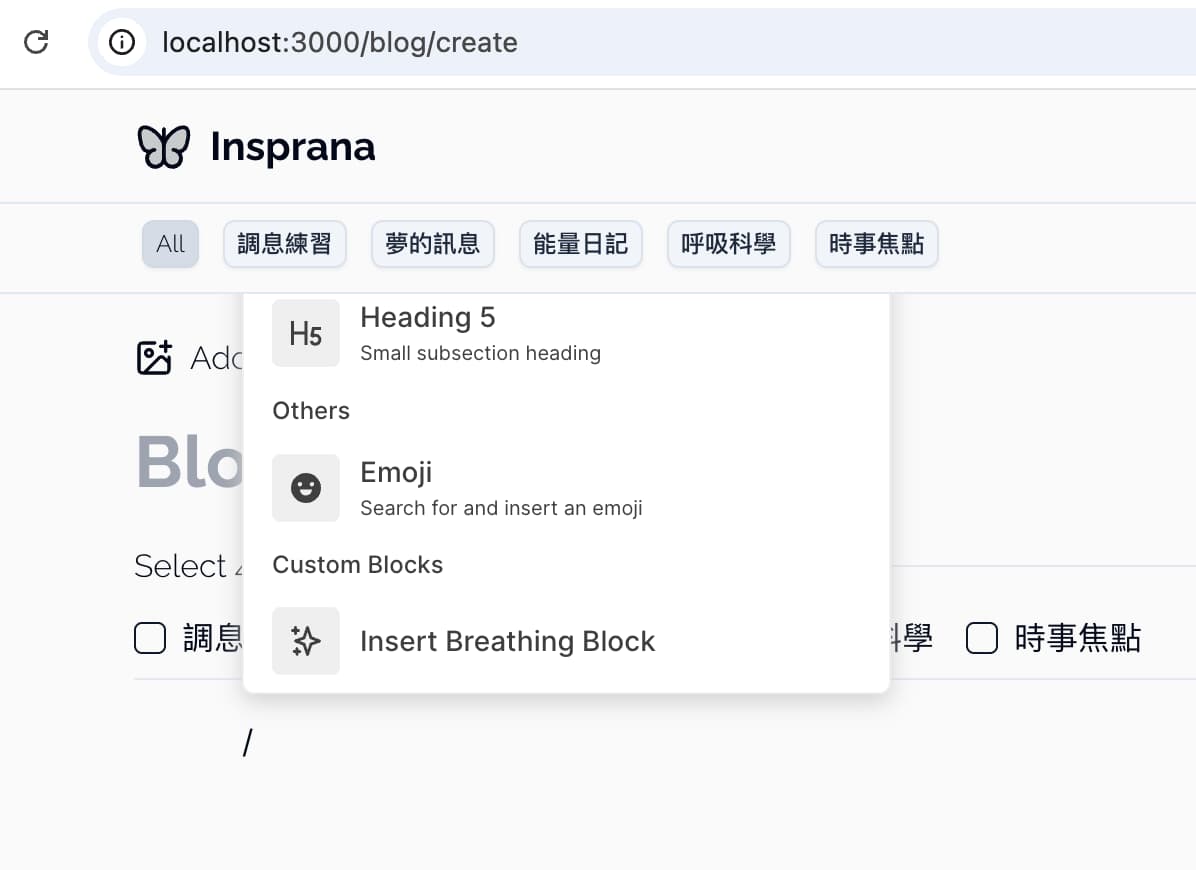
Three options of breathing animation.
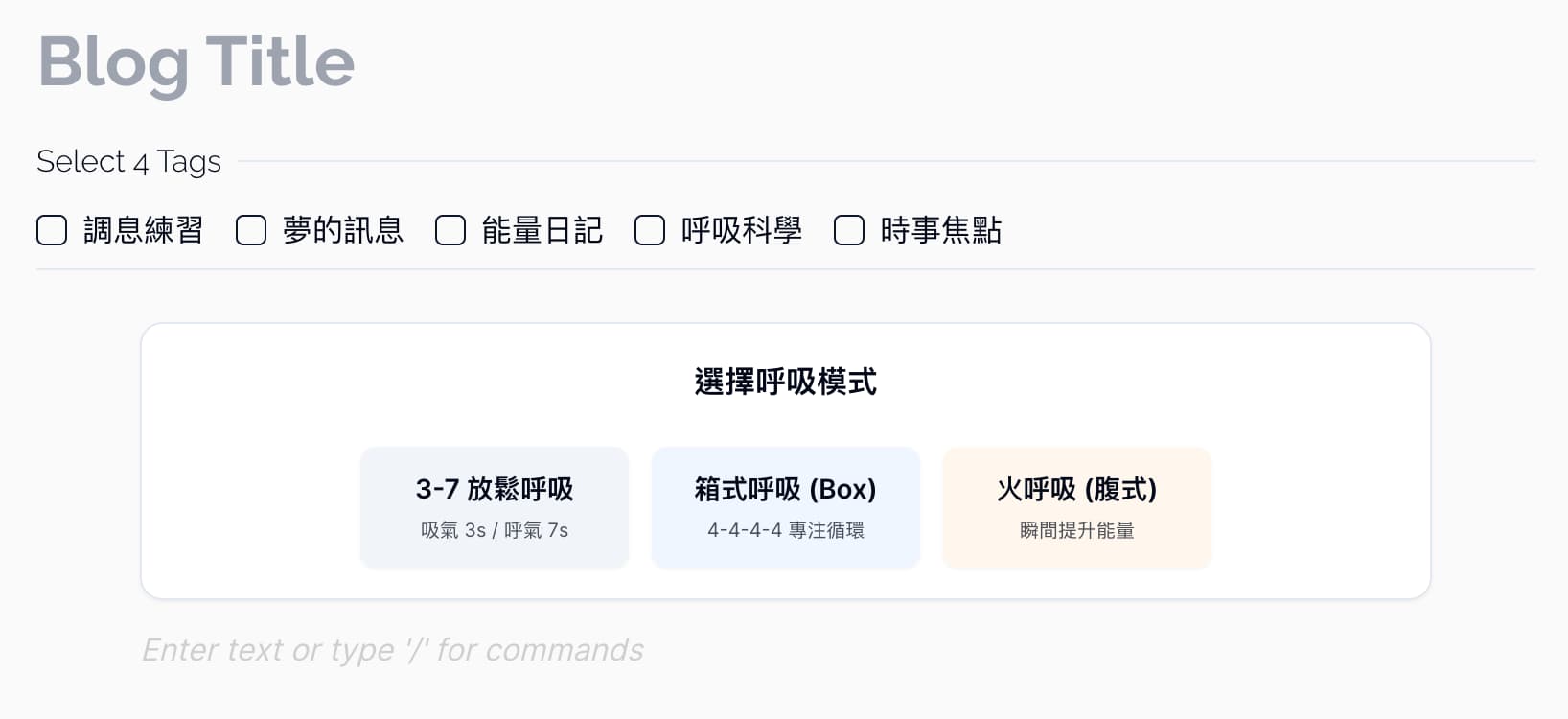
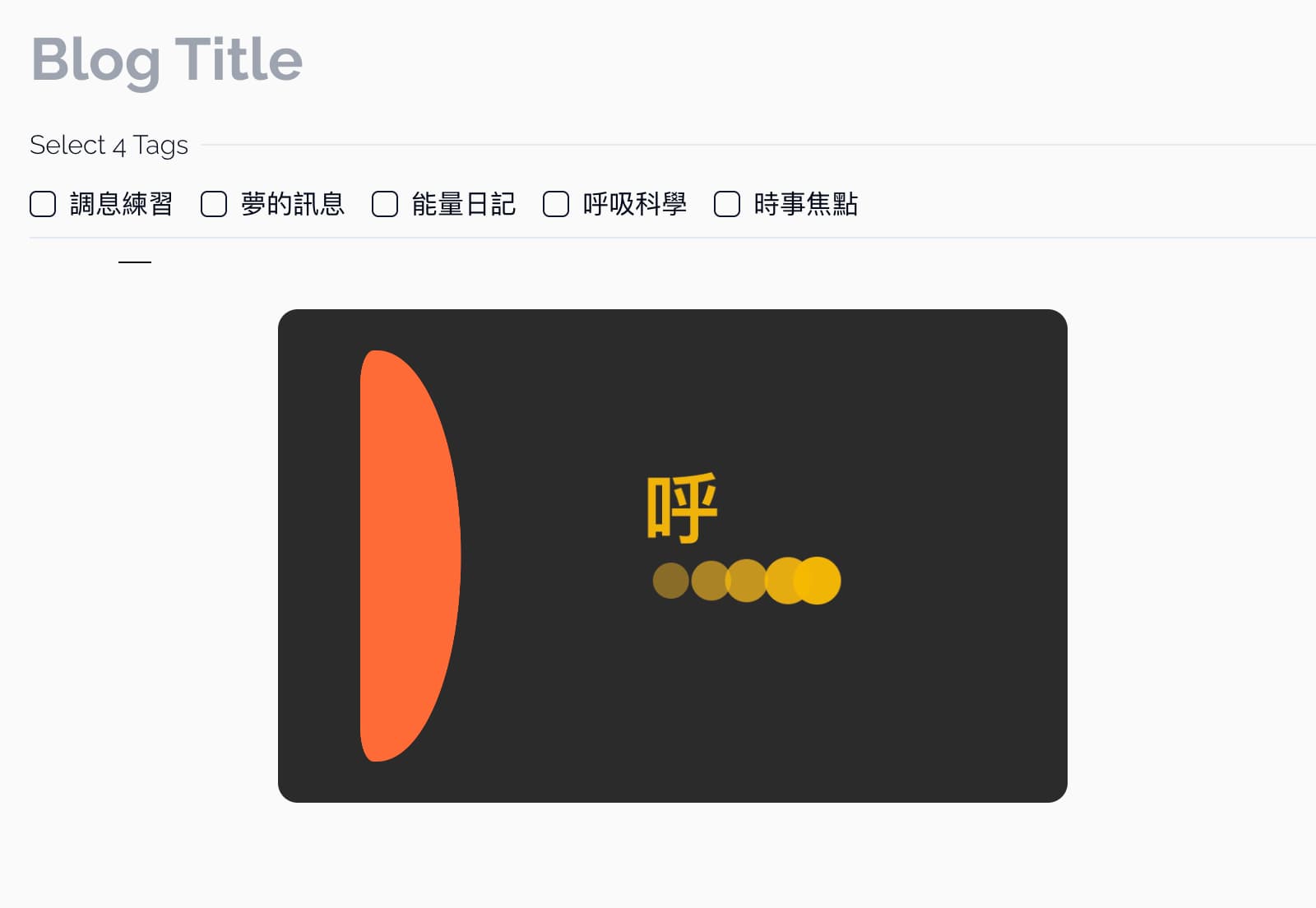
I choose the Breath of Fire, which is a lovely animation that are unable to be shown in this blog. May I invite you to visit Insprana.
6. The "Final Boss": The Navigation Crash (Reader Mode)
Everything seemed perfect. The animations were smooth, and the styling was on point. But then I discovered a critical bug in the Reader Mode.
When a user finished reading an article containing an animation and clicked "Next Post" to read another one, the application would crash with this error shown in browser:
Error: Cannot find node position The Conflict: Next.js Routing vs. ProseMirror
The issue lies in how Next.js handles navigation. When navigating between two dynamic routes (e.g., /blog/post-1 to /blog/post-2), Next.js tries to reuse the existing page components to maximize performance.
However, my custom blocks contain active JavaScript timers (setInterval). When Next.js swaps the content data but keeps the Editor component alive, the old timer tries to update a DOM node that ProseMirror believes has already changed or disappeared. The result is a disconnect between the Editor's internal state and the actual DOM.
The Solution: Forcing a Hard Reset
To fix this, we must tell React: "These are two completely different articles. Do not reuse the editor. Destroy the old one and build a new one."
We achieve this by adding a unique key to the Editor component in our Reader View (BlogContent.tsx).
// components/blog/BlogContent.tsx

interface BlogContentProps {
  initialContent: string;
  blogId: string; // We need the unique ID of the post
}

export function BlogContent({ initialContent, blogId }: BlogContentProps) {
  return (
    <div className="blog-content-wrapper">
      {/*
        THE FIX:
        By passing blogId as the 'key', React detects a change
        whenever the user navigates to a new post.

        It forces a complete unmount of the old BlockNoteEditor
        (cleaning up all timers) and mounts a fresh instance.
      */}
      <BlockNoteEditor
        key={blogId}
        editable={false}
        initialContent={initialContent}
      />
    </div>
  );
}
By simply adding key={blogId}, the "Cannot find node position" error disappeared completely for my readers. The transition between articles became stable, ensuring that my "Breathing App" didn't accidentally choke the blog itself!
Hope you find this article useful! Thank you. :D
Links / References: